Tailz takes a look at using Studio WyldFurr’s VTT Tokens in Foundry Virtual Tabletop without the use of any add-on Mods. This tutorial article assumes you are using an unmodded copy of FoundryVTT, and are using our standard Virtual Tabletop Tokens.
File Folder Name Changes – We have started to release a special FoundryVTT version of our token packs to take advantage of the features of FoundryVTT. These packs include file folder naming features to help you figure out how to scale your tokens in FoundryVTT See the details at the bottom of this article.
 Foundry Virtual Tabletop (also known as FoundryVTT) has been around for a while, but only recently did I pick up a copy to give it a spin. I must say, so far I am quite amazed at this virtual tabletop app. I can see a lot of promise in this App for future development. Plus there is quite a healthy developer community creating mods for the platform.
My only sticking point – which is the same for most Virtual Tabletop Apps – is the “out of the box” token control that comes standard with the program.
Most VTT Apps these days are implementing some form of a dynamic line of sight and lighting effects. Which looks great, but I suspect these features need to know the exact placement of the token to render an accurate line of sight across an adventure map.
It is understandable to implement those features, but the cost of those features has been tokens getting squished into grid squares – which has led to the rise of game tokens turning into simple discs.
If your like me, you enjoy dynamic Virtual Tabletop Tokens over simple discs. This article looks at my first impression of how to use my 3D Rendered Tokens in FoundryVTT so that they are not squished into a grid square.
Actors
Foundry Virtual Tabletop looks at several gaming elements like Playwrights look at a script. Each act in the story of your script is broken down into a scene where the action takes place, including the adventure map, Journal notes (the script), and a list of actors who participate in the scene.
It is the actors who are represented on the virtual tabletop adventure map with tokens. An actor can be a player character such as a Ranger, or a non-player character such as a Troll. These actors are the entities that we need to focus on to set up the tokens to display the character accurately on the adventure map.
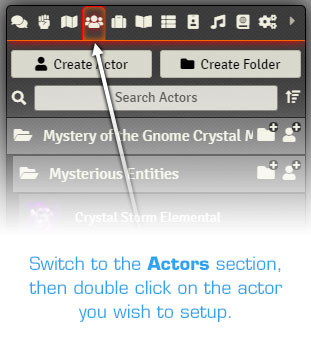
Step #1: Start by opening the Panel that controls the actor you want to edit. For example a Tiger NPC that I am setting up for an adventure module.
Step #2: Click on the Prototype Token option from the top set of options on the actors option panel.
Foundry Virtual Tabletop uses two conditions to tell the App how to handle tokens. The Prototype Token settings can be thought of as the Master Blueprint for the actors token appearance on the adventure map. Each time you drag the actor onto the map from the main list of actors, the actor will be placed onto the adventure map using the master blueprint settings that you set for the Prototype Token. But if you double click on a token that is already on the adventure map, changes you make to that token will only effect that actor’s current token placement. This way you can change a token that is on the adventure map, without having it change your overall token settings.
Step #3: In the panel that opens, click on the Appearance tab to view the settings for the actors appearance.
Step #4: Click on the icon at the end of the Image Path option, this will open a file browser option box where you can locate and select an image to act as the token for your actor. In the example I selected an image of a Tiger from my collection of tokens.

Step #5: Once you have selected the image you want to use as the token, click on the Update Token button to update the details you have set. The panel will close. Don’t worry, we will return to the Prototype Token panel later to finalise the settings.
Step #6: Open one of your scene adventure maps and drag-n-drop a token of the actor onto the map. A token for the actor will appear on the map, click to select it, then double click it to open the Token Edit Panel.

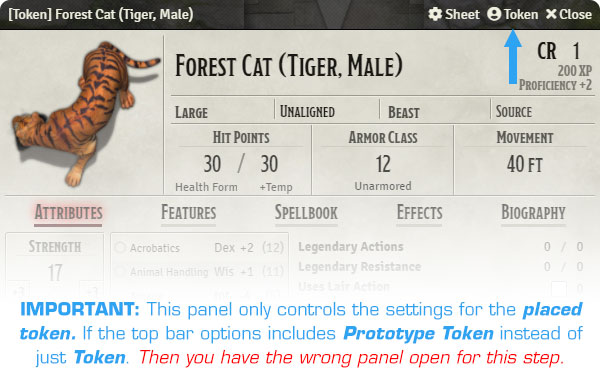
This is a rather important element to understand, the panel that will open looks exactly like the panel that opens when you double click on the actor in the Actors sidebar panel. It contains all of the same information, but that information only applies to the placed token of the actor.
This is a very important distinction. Changes you make in this panel will only apply to the actor and its token placed in this scene. The changes will not carry over to the Actor in the Actors sidebar panel.
The reason for this, is simple. This is the state and condition of the actor in this scene, in this Act of your adventure. The settings contained in the Actors sidebar panel are the overall settings for the Actor in the Campain, which is carried forth from Act to Act, from scene to scene.
There is a simple way to make certain you in the right panel, if the options at the top of the character sheet panel include the option Prototype Token, instead of just Token, then you are in the wrong panel.
Think about it like this, do you want to edit the token for the actor that is in just this scene of the adventure, or do you want to edit the token for the actor in the whole campaign?
A token art adjustment for just this scene, then the option you want to click on should be Token. A change for the overall campaign, Prototype Token is the option.
Step #7: At this point you may have noticed that the placed token has been scaled to fit inside a single map grid square. This works fine for some tokens, but it will not be good for most of Studio WyldFurr’s tokens.
We need to get the token scaled right – this is the tricky part.
To do this, click on the Token option from the top bar of the placed actors’ character sheet to open the Token setup panel. Just as before, switch to the Appearance tab in the panel.
Step #8: Looking through the options on the Appearance tab, you will find the Scale (ratio) slider which will let you scale the token from 0.2 to 3. 1 is the tokens current size, 2 is double that size, 3 is three times that size, etc…
At this point you will need to guess a little. Move the slider left to reduce the size of the token, or right to increase the size of the token. The token will not change, you need to click on the Update Token button at the bottom of the panel, to apply the changes you make. Doing so will update the token and close the panel.
You will need to repeat this process several times until you get the token scaled appropriately for what kind of character you are playing. For example, the Tiger needed to be set to a token scale of 1.3 for it to look correct.
Once you get the token looking right, take note of the number that you had to set with the Scale slider. For example, the Tiger needed to be set to 1.3 to be scaled at the right size.
Close the placed tokens panels, plus you might as well remove the placed token from the map (otherwise it may still be there the next time you open the map).
Step #9: Mouse over and double click on the Actor in the Actors sidebar panel to open the Master Character Sheet for the Actor. You will know if you have the right panel open because at the top of the panel there should be the Prototype Token option. Click on the Prototype Token option to open its panel, and once again click to view the Appearance tab.
Move the Scale slider until the number is displaying the scale factor you discovered in step 8. For example, for my Tiger, I will need to move the slider to 1.3. Once this is set, click on the Update Token button to save the settings and close this panel.
With that set and saved, you have just updated the master blueprint for the actor, so any time you drag-n-drop the actor onto a map, the token should be sized correctly!
That is a lot of fiddling to get your tokens sized right. But once it is done, you don’t need to do it again for that actor. I have only just started to play with the FoundryVTT system, so I am still learning, and might find a better way to setup tokens. If I do, I will update this tutorial.
Video Stream
Check out the video stream of Tailz testing his tokens in Foundry Virtual Tabletop on the Studio YouTube channel.
File Folder Naming Convention
We are starting to release a special Foundry Virtual Tabletop version of each of our token packs that includes specially converted token artwork that will leverage the token artwork tools of FoundryVTT, specifically the scale features.
Standard character token sets that depict a human-size character, will have a file folder name much like the following:
character-set-(2)
The number in the brackets at the end of the folder name dictates the scale the character should be displayed at, most characters will have a scale factor of 2. But some might be 2.5 or 3 if the artwork includes a feature that falls far outside the 5ft grid square, such as a spear.
Large monsters or vehicles will include some more details in the file folder name:
character-set-2×2-2
The first number set is the character squares the object should occupy, in this case, 2 grid squares by 2grid squares. While the number in the brackets is the scale factor, in this example: 2.