Welcome to this tutorial aimed at explaining how to install a Module file into Fantasy Grounds Unity. This tutorial is being created on a Windows PC, but the process should be the same for an Apple Mac system.
What is a Fantasy Grounds Module File?
A module file is an archive file that contains data such as adventure map image files, token assets, Game Master notes, story information, and adventure narrative. We use module files for Token Packs and for our Pathfinder 2nd Edition Map Pins and d20SRD Compass Points Adventures Modules. A module file is easy to identify in our product zip files, it is normally stored in a folder labelled as: Fantasy Grounds Module. Plus the file itself includes the .mod extension, eg: file_name.mod
Step One: Locate the Program App Data Folder
The first thing you need to do, is launch the Fantasy Grounds App to display the welcome panel. On this panel you need to find the small folder icon that is located in the top left hand corner of the panel. When clicked this little folder icon will open the Fantasy Grounds Unity Application Data folder. Go ahead and click the icon to open the folder.
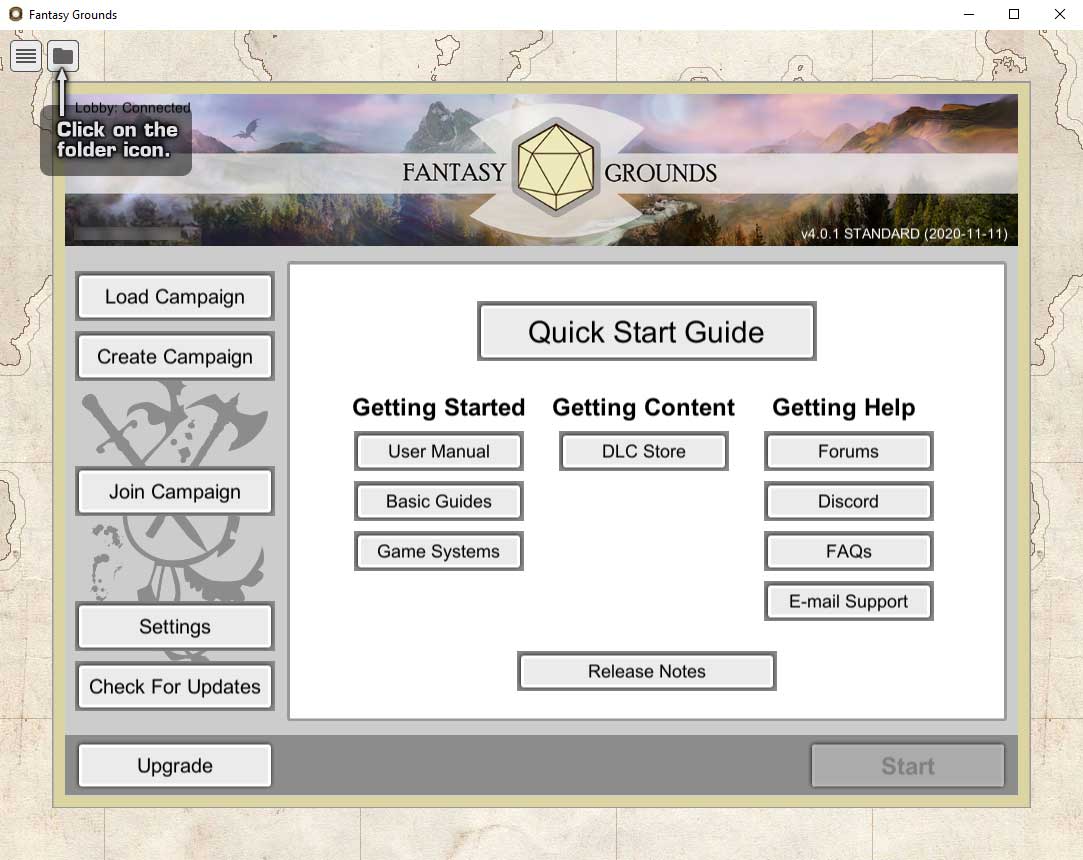
Step Two: Find the Modules Folder
Once that folder icon is clicked, a folder browser window will appear displaying the contents of the Fantasy Grounds Unity Data folder. This folder contains all of the resource files that Fantasy Grounds needs when it is operating, such as Tokens, Images, RPG System Rule Sets, Campaign Files, etc.
The folder we need, is the Modules folder. Keep this file browser panel open as we will need it in a moment.

Step Three: Find the Module File
Now that you have located the Modules Folder in the Application Data folder, you will need to locate the module file you want to install.
If you are a supporter of Studio WyldFurr on Patreon you will have access to the studio Project Library, which grants you access to our products. Some products include a Fantasy Grounds Module version of the product, this will permit you the ability to download the module file directly to your computer from the Project Library.
Step Four: Copy the .mod file into the Modules Folder
Now that you have located the .mod file that you want to install, you need to copy it into the Modules Folder inside the Fantasy Grounds Unity Application Data Folder.
Just click to copy the .mod file and then paste it inside the Modules Folder that we found in Step Two above.
That is it!
You have just installed the module.
With the .mod file inside the Modules Folder, you can now have access to that content the next time you run the application.

Congratulations, your module is installed and ready to go the next time you run the Fantasy Grounds application. Happy gaming and don’t forget to checkout our latest projects. Or if you want to help support the studio, why not become a studio supporter at Patreon?