In this tutorial we are going to walk through the steps of importing an Adventure Module from Studio WyldFurr into FoundryVTT via the Moulinette plugin. If you have manually downloaded the adventure module file and want to install it manually, please view our How to manually add an Adventure Module into FoundryVTT Tutorial.
Installing adventure modules from Studio WyldFurr into FoundryVTT via the Moulinette plugin is a feature exclusive to supporters of Studio WyldFurr. Please consider supporting Studio WyldFurr via Patreon, your pledge helps Tailz produce more and more material. To our current supporters, thank you very much for your support!
 Moulinette is a great plugin for FoundryVTT, it provides access to a wealth of content from creators such as myself and many more. One of the great features of the plugin is the ability to import adventure modules directly into your game world. You can import a part of an adventure module – such as a single scene – or the whole shebang in one go!
This tutorial deals with importing an entire adventure module into your game world. Importing all of the scenes, characters, maps, token artwork, and everything needed to employ the adventure in your game.
I use two plugins in FoundryVTT which you will need to have installed in order to use my material in FoundryVTT. The first plugin is Moulinette and the second is Scene Packer.
- Moulinette: This plugin provides access to material from content creators within FoundryVTT.
- Scene Packer: This is an Adventure Module packing plugin that lets content creators wrap up adventure modules for export to patrons.
You will need to have these two plugins installed and activated in your game world n order to use material from Studio WyldFurr.
From here, we are going to assume you already have the Moulinette plugin installed and synced with your Patreon account. If you do not, please read our How to install Moulinette into FoundryVTT tutorial that will walk you through the process.
Getting Started
The very first thing you need to do is load into your world as the Game Master. If you are using an existing world with already existing scenes and material, then all you need to do is begin at Step #1 below. If you are using a blank fresh new world with nothing in it, you will need to create a temporary Scene in your world, in order to enable a number of program features that will not function unless the game world has a Scene in it.
Click on the button labeled Scenes from the top right menu, then click on the button labeled Create Scene. The name of the temporary scene does not matter as you are going to delete it later. Just label it as Setup for the time being.
Now that we have a scene in the World, we can access all of the program features.
Step #1 – Content Browser
The first thing you need to do is locate the content you want to import. This is done by using the Moulinette Content Browser to search for Scene content from the adventure.
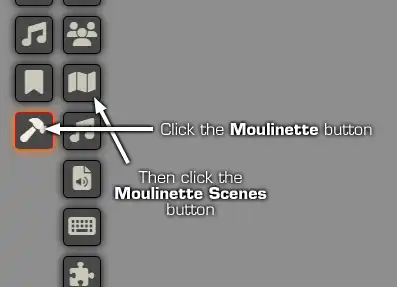
In the menu buttons that run down the left-hand side of the FoundryVTT window, click on the Moulinette Button (it is the button with a hammer icon). This will load a second column of buttons, from which you will need to click on the Moulinette Scenes button (it has an icon that looks like a folded map) in order to view the Moulinette Content Browser.
Step #2 – Search
Now that the Moulinette Content Browser is open, we can search for the adventure module.
Under the Content Browser main menu, is a search bar with a number of drop-down menus. The two items we will be concerning ourselves with will be displaying the text, All Creators and All Packs.
In the All Creators drop-down list, search for Studio WyldFurr, then in the All Packs drop-down list you will need to search for he name of the adventure module you wish to load. For example, Mystery of the Gnome Crystal Mine.

With the search options filled in, the Content Browser will display Scenes from the selected Adventure Module. You can import just a single scene, but we want to import the whole adventure module which consists of all of the scenes, journal entries, tables, tokens, map assets, etc.
Note: At the time this tutorial was written, Moulinette could be employed to enable Game Masters the ability to load selected scenes into their game world. We are instead seeking to install an entire Adventure Module instead of just individual scenes. I suspect in the coming months Moulinette will release an update that permits one-click loading of FoundryVTT’s new Adventure Journals.
Step #3 – Import
Double-click on one of the Scenes that belongs to the Adventure Module, doing so will open the Scene Preview panel. At the bottom of the Scene Preview panel click on the Import Scene button to view the Scene Packer: Importer panel.
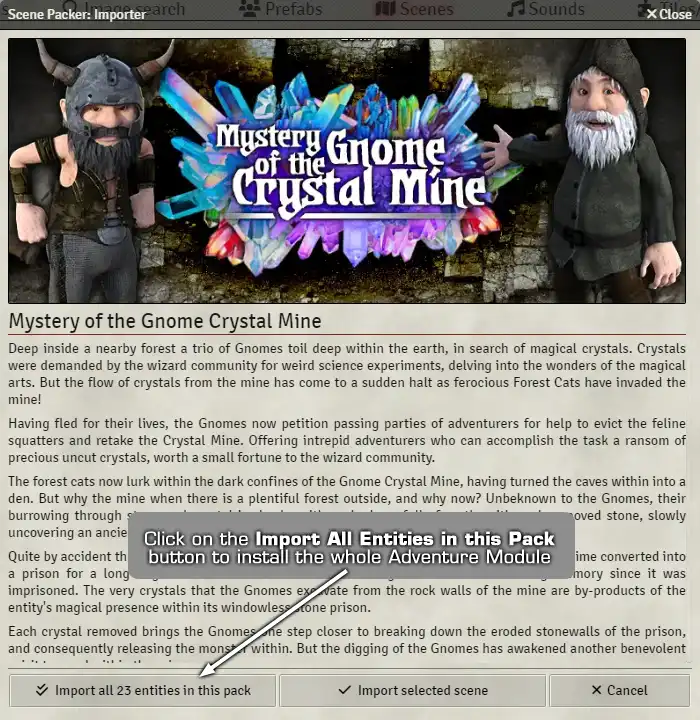
The Scene Packer: Importer panel will display the introductory welcome message for the Adventure Module, at the bottom of the panel you will see three buttons. When you are ready, click on the Import all # entities in this pack button. Doing so will import all of the Journal entries, scenes, maps, tokens, etc, into your currently active game world.
Importing the Adventure Module may take a little while depending upon the speed of your internet connection, and the size of the Adventure Module being downloaded. Several messages will pop up advising you as each element is imported into the currently active game world.
Once completed you will see new Scene tabs at the top of the FoundryVTT window, along with new Entries in the Scenes, Journal, Acts, and Items menus. Each new entry should be found inside a folder with the title of the adventure.
Note: If you started this process with a fresh blank game world and needed to create a temporary setup Scene. You can now delete the temporary setup scene as it is no longer need it.
Congratulations! You have just completed importing the adventure module into your game world. I hope you have many hours of gaming fun with Studio WyldFurr’s adventure modules.
Don’t forget to take a peek at the Adventure Modules we have on offer, plus I’m always happy to hear your feedback on my Adventure Modules. You can join the conversation on Discord or have your input on the Patreon Community.